Build instructions – BME280 ESP8266 (WiFI-only)
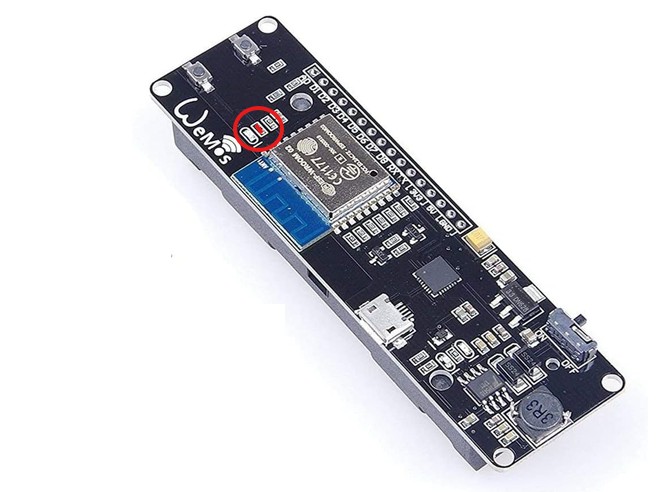
Please note, this is the WiFi only version (cost prioritised starting £7.50 vs £23 for WiFi & BT). This version (WiFi only) require some soldering
Instructions in draft form. Please check back soon for updated instructions or sign up for our RSS feed to be notified.
Instruction outline
Click to jump to section:
- Preparation
- Solder connections
- Upload the firmware and test sensors/connection
- prepare enclosure
- Get researching!
1. Preparation
1a. Sign up to OpenScienceMethods
To sign up, please go to our registration page.
Depending on how you want to use the device, you will either need to:
1b. Buy required equipment
The equipment list below is indicative of what we used and not a recommendation. Prices vary (and can be cheaper if soldering components/wires directly)
Core components (~£7.50-£18):
- ESP8266 18650 (~£4.50, e.g. Aliexpress)
- Qwiic connector (i.e. 4-pin male JST 1mm pitch cable ~£1)
- BME280 (~£12 for cable version, e.g. eBay, ~£2 for generic version)
If using on-the-go (+ ~£16):
- Enclosure (~£6 *The enclosure we bought with a very snug fit is the 50x65x55mm here)
- Cable gland (~30p each, e.g. 13.5mm gland, £2.89 for 10 on eBay)
- I18650 Li-ion battery (~£10 from e.g. RS)
Recommended tools:
- Soldering iron
- Electric tape
- Multimeter
- USB mini cable (ensure is a data cable as some are power-only)
- A drill
2. Solder connections
You have the choice of:
- Solder one QWIIC/Stemma QT connector to each a) the BME280 and b) the ESP8266 board. You can either solder a QWIIC wire to both or just to the BME280 and a QWIIC port to the ESP8266. We prefer the first for ease of use and robustness, though the latter is an option if trying to reduce cost.
- Soldering the probe to the ESP8266 board directly (cheaper but not recommended as this makes the setup semi-permanent and therefore requires you mount in any enclosure)
Solder the QWIIC cable connections to your BME280 and ESP8266:
- 3.3V → 3V3
- GND → GND (recommend nearest the “boot” button)
- SCL → SCL (D1 on ESP8266 18650 board)
- SDA → SDA (D2 on ESP8266 18650 board)
Ultra Low Power soldering requirement:
For a much greater efficiency (and therefore battery life), the ESP8266 18650 board require bridging a solder joint (i.e. melting solder across two solder pads).
This takes battery life for an every 15-minute logger from less than a day to several days. If not using in 10 second mode, we recommend bridging this solder joint for longevity!
Note: after installing the code below and testing, you will need to upload either the Low Power (3b) or Ultra Low Power version (3c).
3a. Upload basic firmware and test connection
Connect the logger to a computer via USB then upload the firmware using the web uploader below (requires Google Chrome or Microsoft Edge browser)
Check sensor data over Serial
Connect the sensors (remember to unplug before connecting the sensors!) then reconnect the USB
You will then need to programme the loggers settings by entering the commands and sending to the device
3b. Low Power version
*This version requires bridging the solder joint (details at the end of section 2). If using in minutely or longer frequency, this version lasts considerably longer (~4-7x) as it allows the ESP8266 enter (and importantly be woken up from) deep sleep.
To upload and test, visit the firmware page here.
What’s the difference between the “Low Power” and “Ultra Low Power” versions?: The Low Power version checks if you want the WiFi and measurement frequency (mode) to be set each time. The Ultra Low Power version assumes you just want these set once. We recommend using the Low Power version unless experienced.
3c. Ultra Low Power version (advanced users)
*This version requires bridging the solder joint (details at the end of section 2). If using in minutely or longer frequency, this version is the most power efficient as it allows the ESP8266 enter (and wake up from) deep sleep. This Ultra Low Power version assumes you just want to set the measurement frequency once (either in this code or previously if you uploaded the Low Power only version).
To upload and test, visit the firmware page here.
What if I want to change my settings?: You will need to flash the Low Power firmware (above) first before reinstalling this version.
4. Prepare enclosure
Disclaimer: the below demonstrates how we prepare our own enclosures and does not constitute recommendation or advice. We take no responsibility for any injury or damage. Please ensure you adopt an approach in-keeping with your/your students’ age and skill level and ensure that you are using the appropriate Personal Protective Equipment (PPE) and taking the appropriate precautions. If you have any doubt, do not continue!
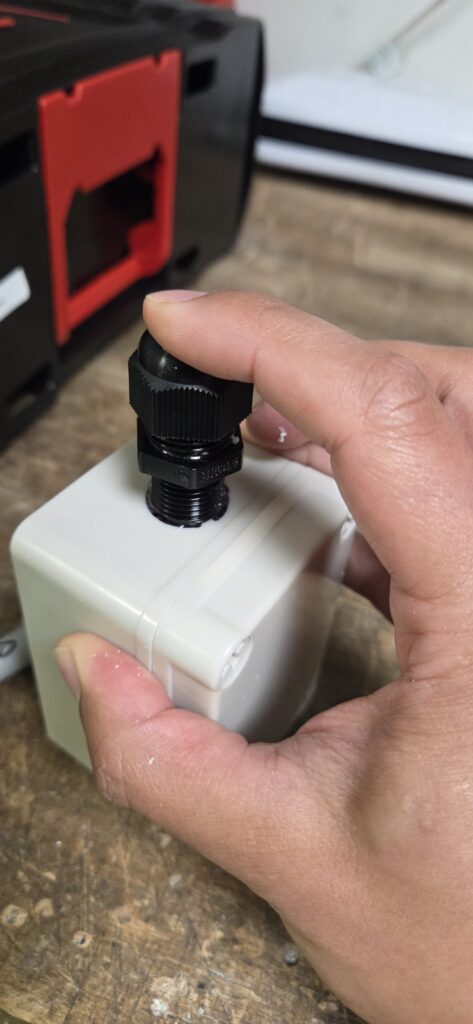
Position your cable gland where you might like the cable to enter your enclosure and mark.
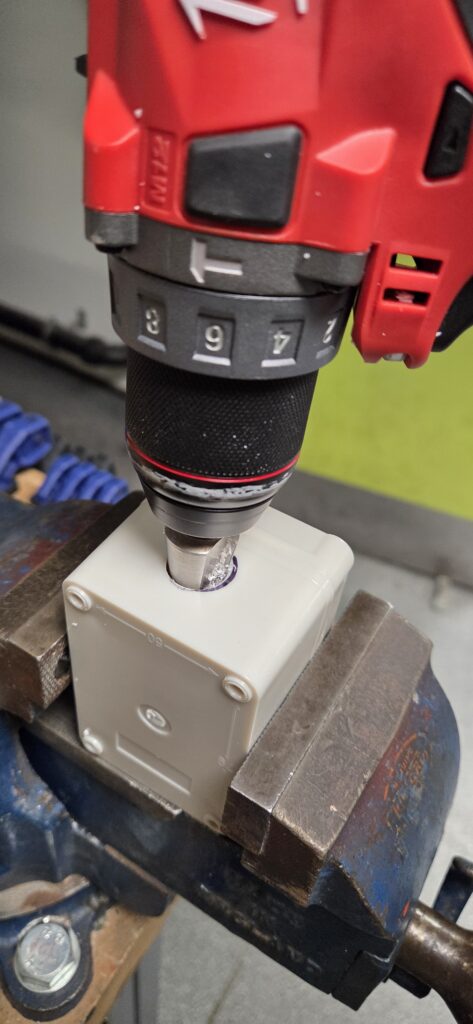
Drill a hole for the cable gland using a drill and appropriate drill bit (we use a conical drill bit, taking care to measure the whole against the gland every so often)
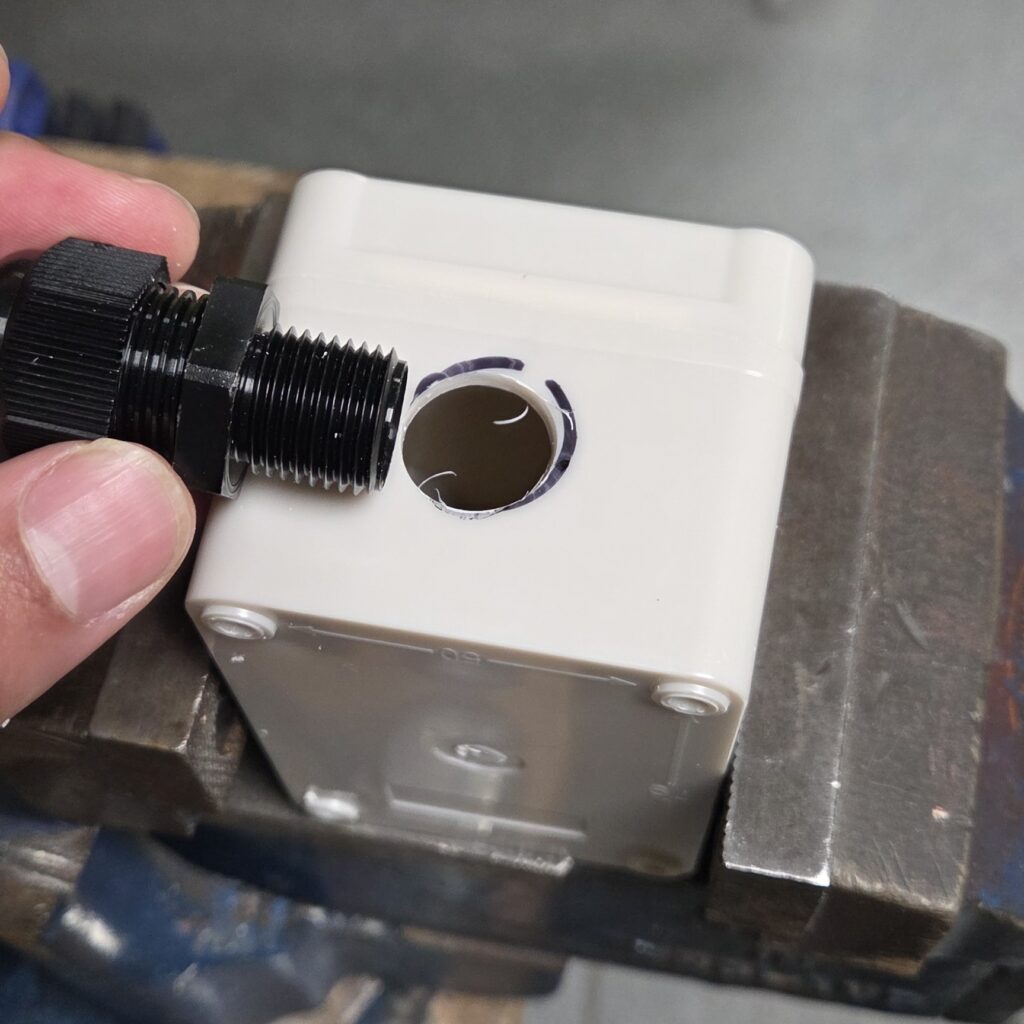
Once complete, you can thread the gland through and tighten the nut from the inside.
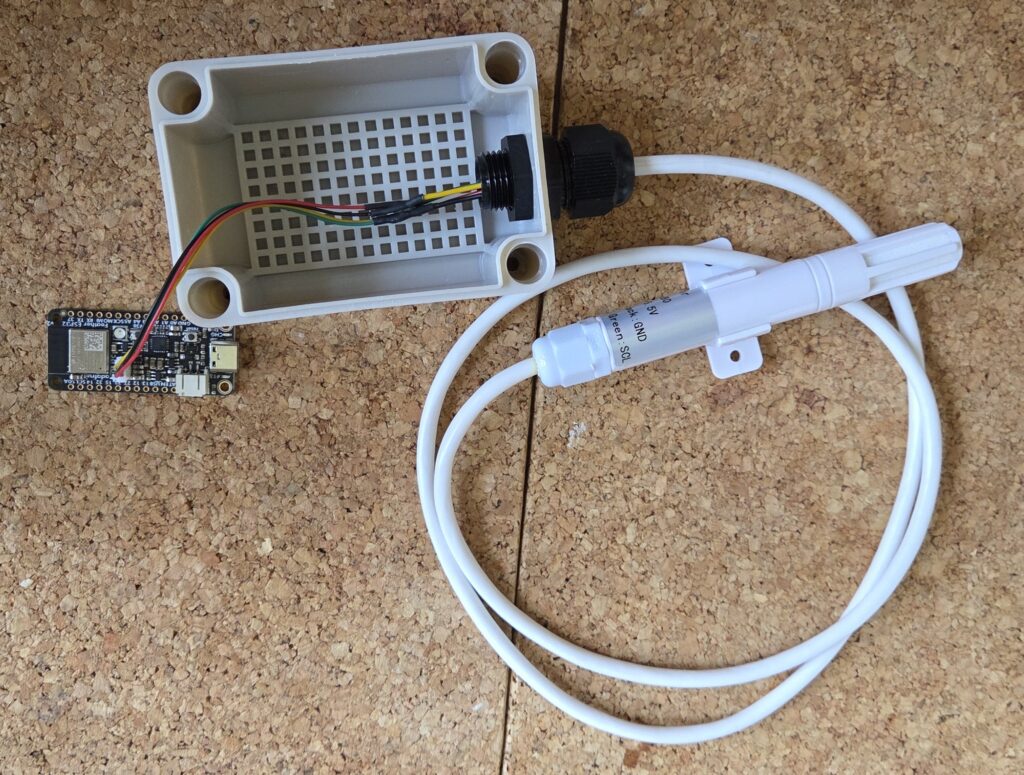
You can then thread your BME280 cable through, and connect to your ESP32
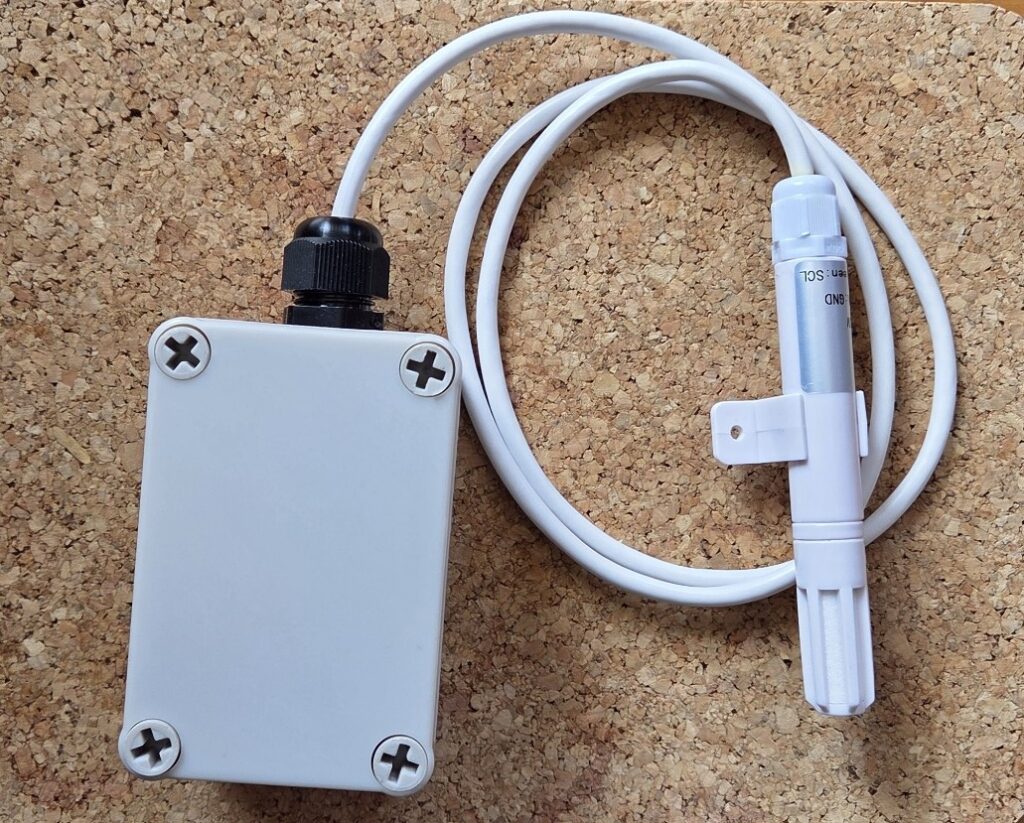
Connect your battery, close your enclosure (being careful not to trap wires) then you’re ready to get researching!
5. Get researching!
Use the Open Science BME280 logger to measure and report air quality in the environment.
You may also be interested in joining a project